iPhone guide
iPhone Screen Time: View, Limit, and Reduce Use
Use iPhone reports and limits together with changes in daily behavior.
Find the repeated moment first
Total hours alone do not explain use. Ask when and why you most often pick up the phone: waking, a hard work task, meals, or bedtime.
Open Settings > Screen Time > See All App & Website Activity. Review daily and weekly use. Record two main apps and two repeated moments. Start with this small area.
Set realistic App Limits
iPhone can limit apps or categories. Choose an achievable first allowance rather than an immediate large drop. Review it after a week.
Open Settings > Screen Time > App Limits > Add Limit. Apps in a shared limit use the same total allowance. You can choose different limits by day.
If you remove your limit every day, try the behavior changes to make before reducing the allowance .
Current app selection and time setting steps are in Apple’s official App Limits guide .
If you keep ignoring the limit, its timing may be wrong or a suitable alternative may be missing.
iPhone settings for your need
Choose the behavior to change first. One tool does not solve every issue.
- 1Settings
- 2Screen Time
- 3App Limits
- 4Add Limit
Choose an app or category and a daily allowance. Apps in the same group share the limit.
Menu names vary by iOS version and phone language. This tool does not change your phone settings.
Use Downtime for specific periods
Downtime limits most apps and notifications at selected hours. Allowed apps and communication remain. Consider a morning, reading, or bedtime period.
Choose start and end in Settings > Screen Time > Downtime. Keep necessary Phone, Maps, or messaging apps in Always Allowed. Reduce automatic use while preserving necessary access.
Adjust notifications for the task
Create a Reading Focus. Choose necessary people and apps and hide distracting Home Screen pages.
If you open apps by habit despite fewer alerts, combine Focus with app limits and physical distance.
To choose which people and apps can notify you, follow the iPhone Focus mode setup guide .
Arrange the Home Screen for your chosen use
Remove social and video apps from the first page without deleting them. Keep reading, notes, music, or calendar tools visible.
Switch off nonessential badges. Review each app and keep only time-sensitive alerts.
Add a physical step between you and the phone
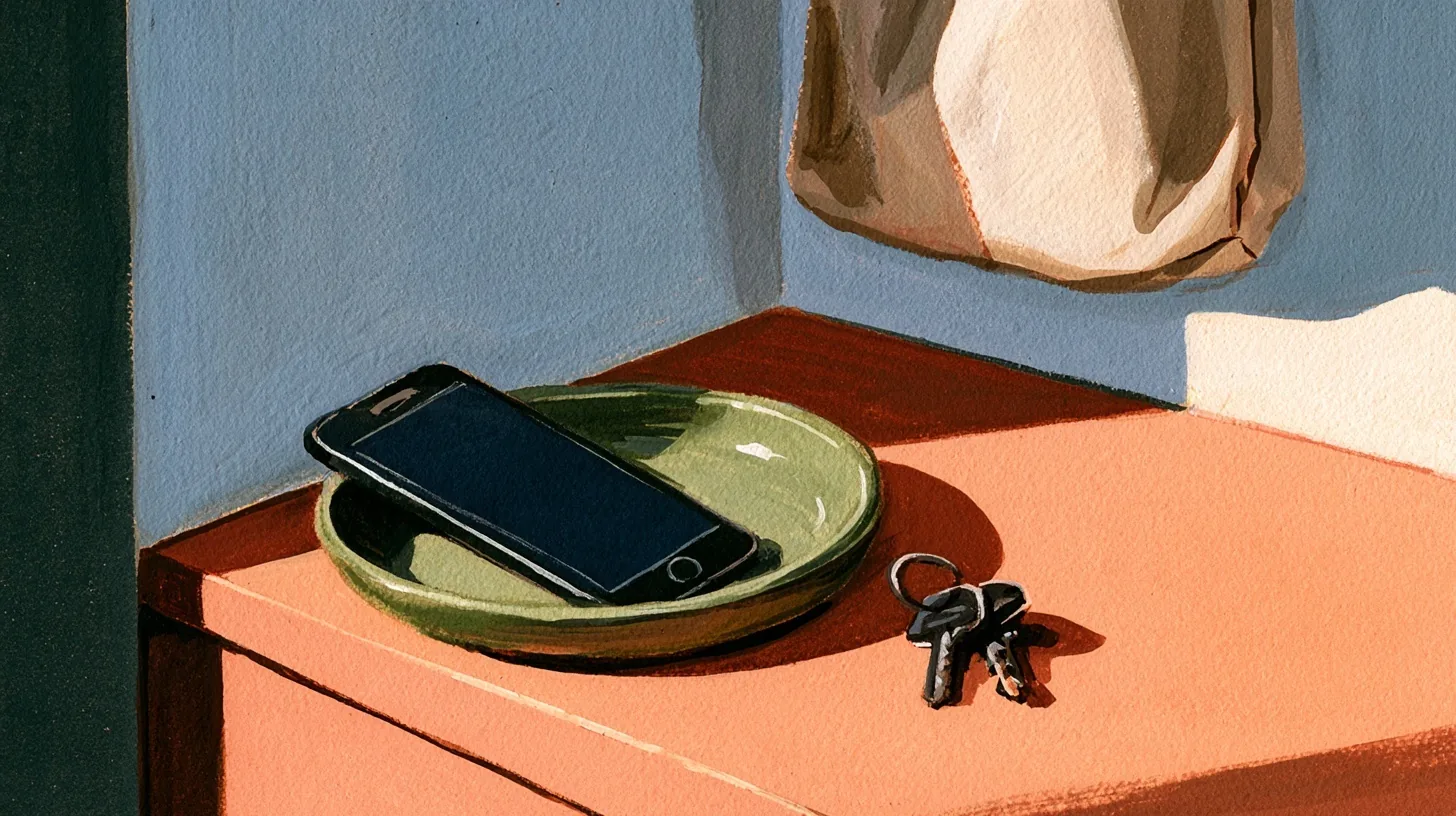
Choose a fixed place for the phone during reading, work, or conversation. Another surface or room creates a clearer pause before access.
Prepare an open book, walk, or notebook instead. Without another activity, the old phone pattern may return.
To choose another tool, see the iPhone and Android app blocker comparison . It includes free settings, apps, and physical options.
Before paying for a tool, compare free settings and physical options without subscriptions together.
A simple one-week experiment
Limit two apps, choose one reading or bedtime Downtime period, and set a phone location. After seven days, review automatic checks and how you used the available time.
Keep useful settings and change unnecessary obstacles. Adjust the setup as your day changes.